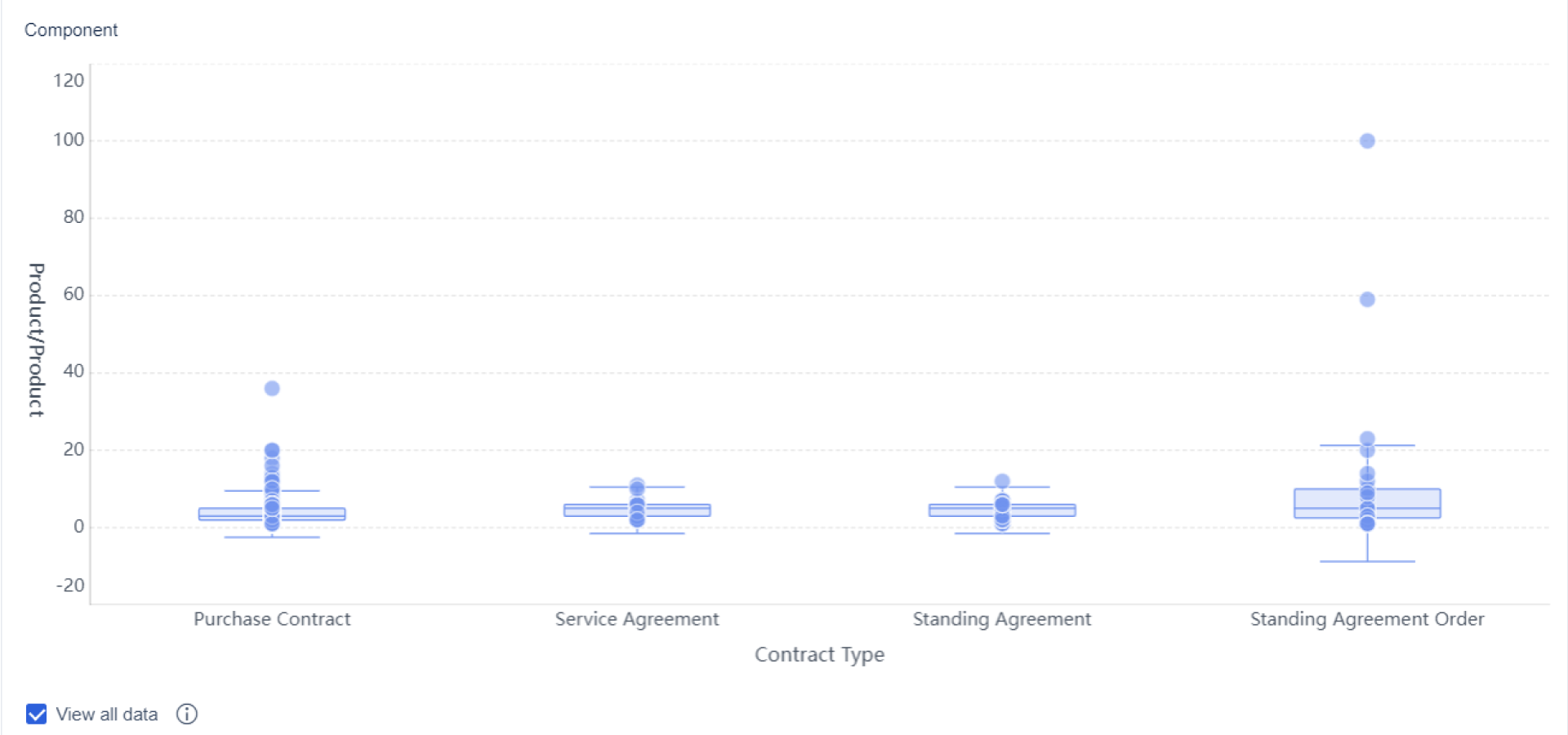
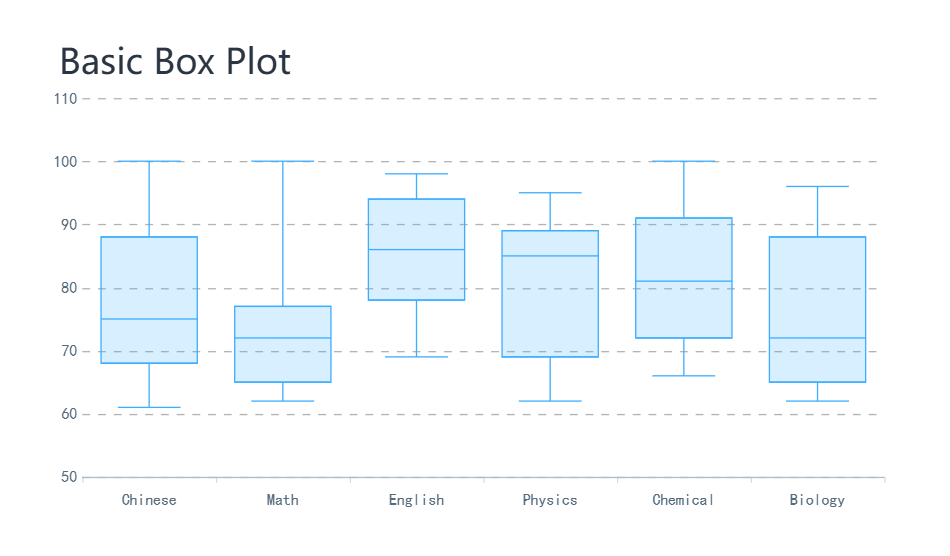
Box plot generator made easy for free online means you can create professional box plots without paying or learning complex software. You just upload your data and get results in seconds. FineBIstands out as a top choice because you do not need any technical skills and the process is quick and simple.
You have other options, too. Some popular tools include:
FineBI
GeoGebra
AI Box Plot Generator
Plotly
Desmos
Meta-Chart
ChartGo
MathCracker
RapidTables
Try FineBI or any of these free solutions to see how fast and easy box plot creation can be.
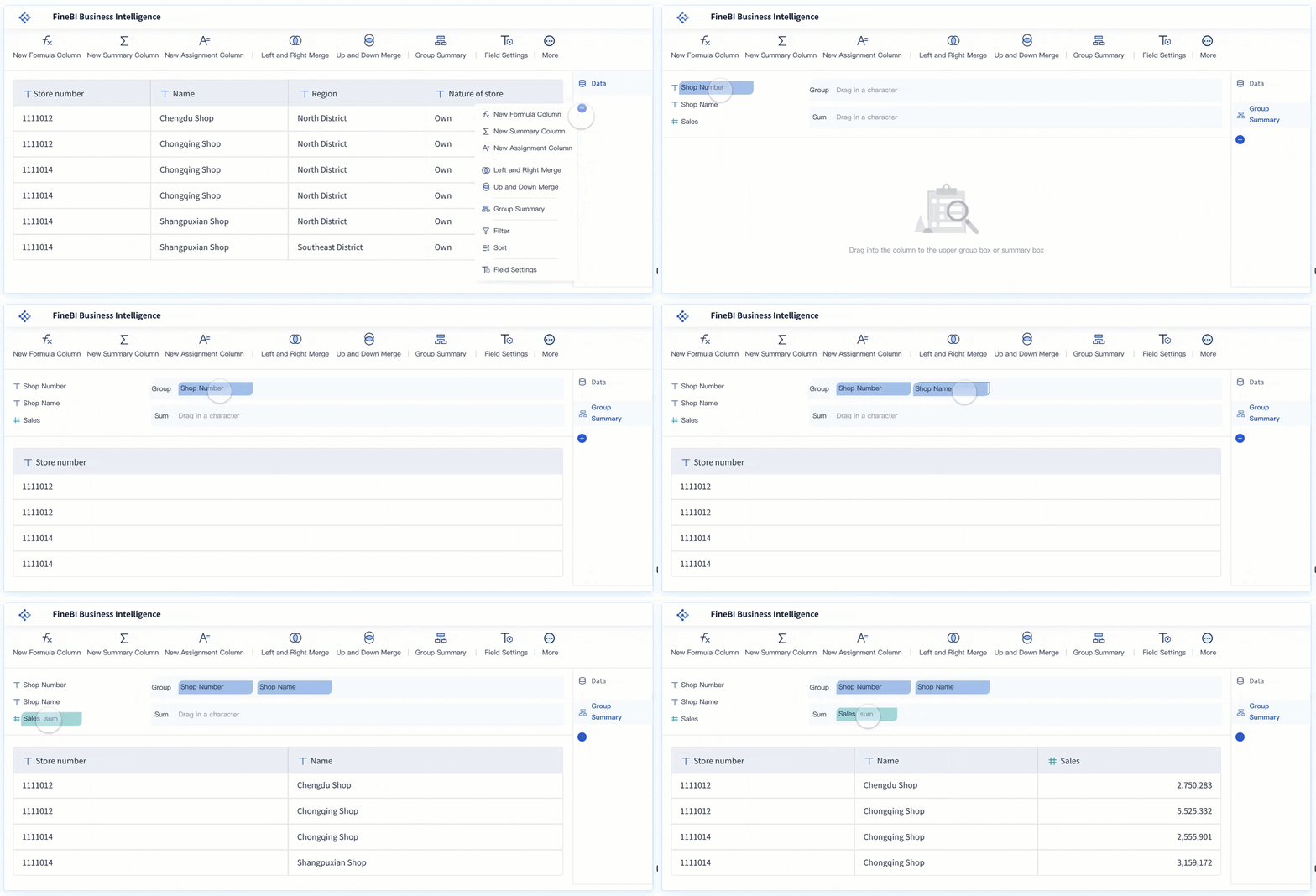
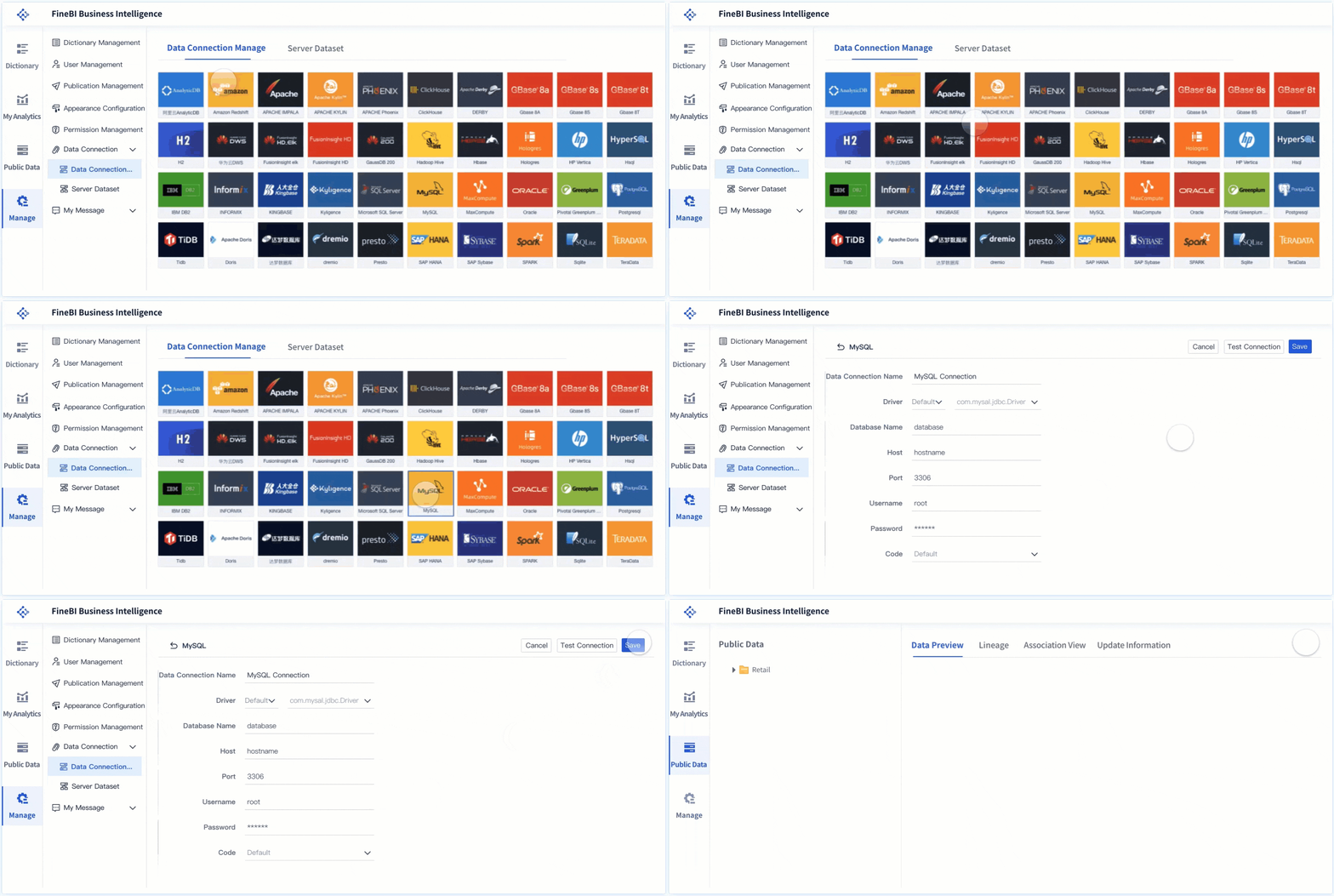
FineBI stands out as an enterprise-grade box plot generator. You can use FineBI to connect to many data sources, including databases, Excel files, and big data platforms. The workflow guides you through data integration, processing, and visualization. You can create interactive dashboards with drag-and-drop simplicity. FineBI supports real-time filtering, advanced analytics, and secure sharing. You do not need coding skills to build box plots or other charts. This tool is ideal for business users, data analysts, and researchers who want a powerful data visualization tool for statistical analysis.
Key Features:
Connects to over 60 data sources
Drag-and-drop dashboard creation
Real-time interactive box plot generator
Role-based access control for secure sharing
Augmented analytics and AI-driven insights
Pros:
User-friendly interface
Handles large datasets efficiently
Supports advanced statistical visualization
Enables team collaboration
Cons:
Best suited for organizations or advanced users
Ideal User Profile: You should choose FineBI if you need enterprise-level features, advanced analytics, and secure collaboration for your data projects.
Tip: FineBI offers a free trial so you can explore its capabilities before making a commitment.
GeoGebra is a popular online box plot generator for students and teachers. You can visualize complex mathematical concepts and see results instantly. The tool lets you adjust graphs by dragging points, which saves time compared to manual changes. Many students find this feature helpful for learning statistics. However, you may experience slow loading times or software crashes. Troubleshooting can be difficult without support.
Key Features:
Immediate visual feedback
Drag-and-drop graph adjustments
Free access for educational use
Pros:
Interactive and engaging for students
Simple box plot creation
Supports mathematical exploration
Cons:
Occasional technical issues
Limited support for troubleshooting
Ideal User Profile: GeoGebra works well for students and teachers who want a user-friendly box and whisker plot maker for classroom activities.
AI Box Plot Generator uses artificial intelligence to make box plot creation fast and accurate. You can automate the process and reduce errors. The tool analyzes your data and produces visualizations quickly. You can customize your box plots without needing technical expertise.
Evidence Description
Explanation
Streamlined Process
The AI Box Plot Generator automates the creation of box plots, making the process more efficient and user-friendly.
Time-Saving
It quickly analyzes data and produces visual representations, saving time compared to manual methods.
Error Reduction
Automation reduces the potential for errors that can occur with traditional manual calculations.
Customization Options
Users can easily tailor the generated plots to their needs without needing extensive technical expertise.
Pros:
Fast and efficient
Reduces manual errors
Customizable output
Cons:
May require internet access for full features
Ideal User Profile: You should use this tool if you want to save time and get accurate box plots with minimal effort.
Plotly is a well-known online box plot generator for interactive data visualization. You can zoom, pan, and hover to explore your data. Tooltips and annotations help you understand your results. Plotly supports summary statistics and outlier detection.
Interactive features such as zooming, panning, and hovering allow users to explore data thoroughly.
Tooltips and annotations provide additional context, enhancing data comprehension.
The inclusion of statistical charts like box plots aids in the exploration and presentation of data.
Seamless integration with Plotly Express for easy use.
Extensive customization options for crafting visually appealing box plots.
Ability to explore outliers and present summary statistics effectively.
Pros:
Highly interactive
Extensive customization
Supports advanced statistical analysis
Cons:
May require registration for some features
Ideal User Profile: Plotly is perfect for researchers and students who need interactive box plot generators for detailed data exploration.
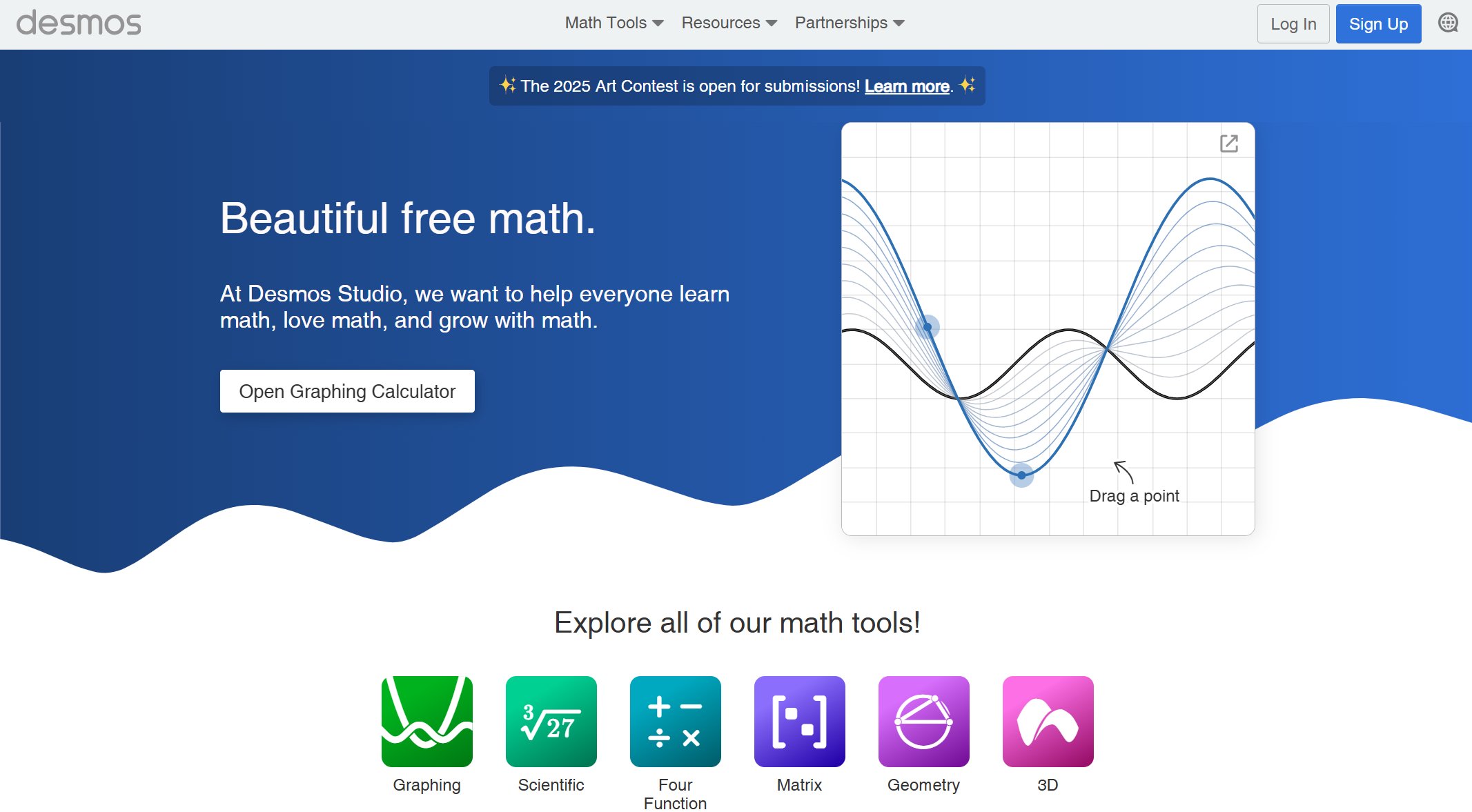
Desmos offers a free online box plot generator that is popular in classrooms. You can input data and see dynamic changes in your box plot. The tool is interactive and supports unlimited editing. Desmos is easy to use and helps you visualize statistics concepts.
Key Features:
Dynamic data input
Unlimited editing
Free access
Pros:
Interactive and engaging
Simple interface
Great for learning statistics
Cons:
Limited export options
Ideal User Profile: Desmos is best for students and teachers who want a user-friendly tool for statistical visualization.
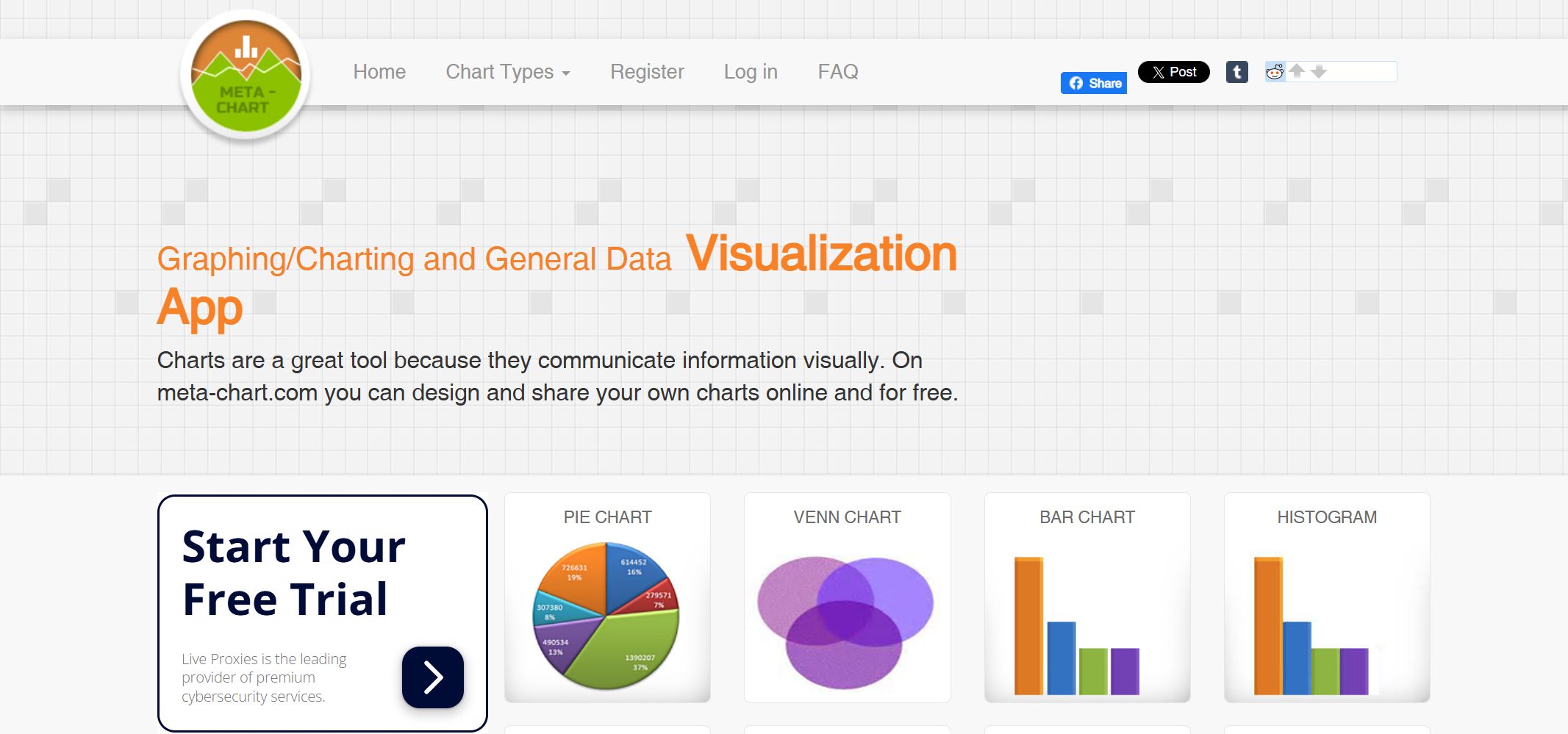
Meta-Chart is a box plot generator that offers strong customization options. You can detect outliers, adjust whisker styles, and compare multiple groups. Meta-Chart is easy to use and supports various data formats.
Feature
Meta-Chart Box Plot Generator
DataStatPro Box Plot Generator
Outlier Detection
Yes
Yes
Customizable Whisker Styles
Yes
Yes
Multiple Group Comparisons
Yes
Yes
Pros:
Flexible customization
Supports group comparisons
Detects outliers
Cons:
May have a learning curve for advanced features
Ideal User Profile: Meta-Chart is ideal for users who need detailed customization and advanced statistical analysis software.
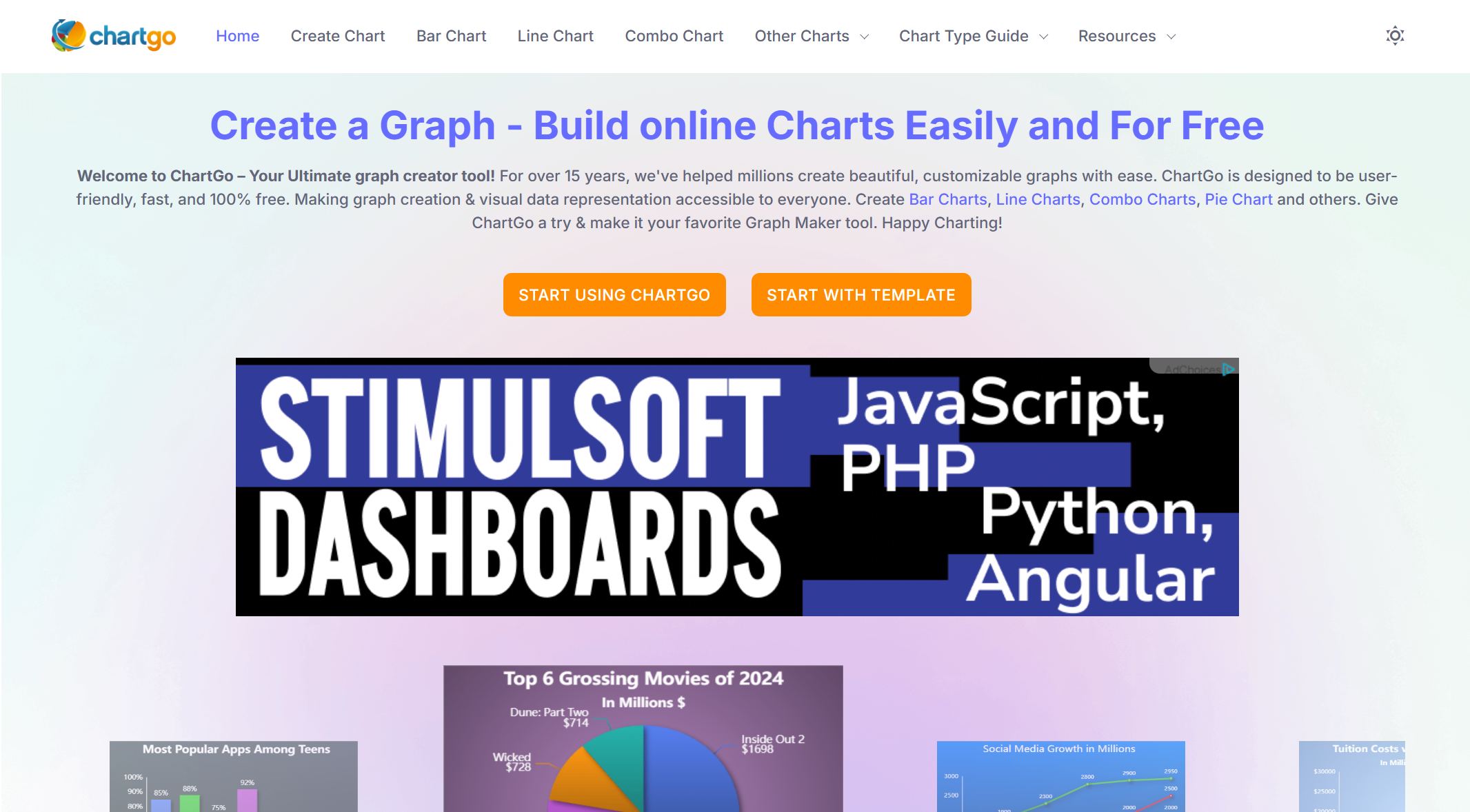
ChartGo is an online box plot generator that focuses on simplicity. You can create box plots quickly by entering your data. The tool is user-friendly and works well for basic visualization needs.
Key Features:
Simple data entry
Fast box plot creation
Free to use
Pros:
Easy to use
Quick results
No registration required
Cons:
Limited advanced features
Ideal User Profile: ChartGo is suitable for users who want simple box plot creation without extra complexity.
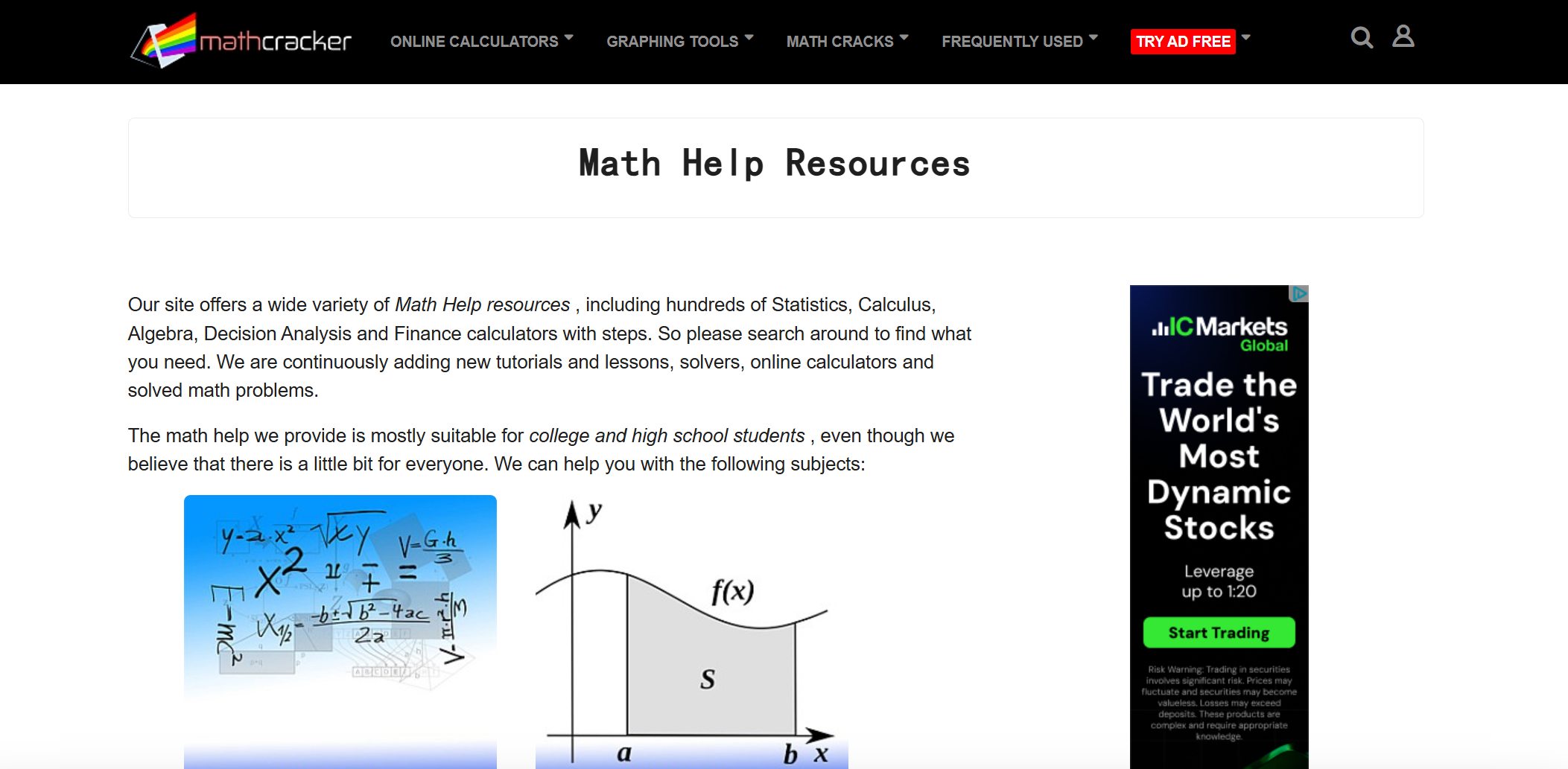
MathCracker helps you learn statistics by visualizing your data. You can input data from Excel and see each step of the box plot creation. The tool highlights quartiles and outliers, making statistical concepts easier to understand.
Users can input data directly from Excel.
The tool constructs the box plot graphically, showing each step of the process.
It highlights key statistical features like quartiles and outliers.
MathCracker is designed to help students visualize and understand statistical concepts by allowing them to create box plots from their data. This visualization aids in grasping the distributional properties of a sample, such as quartiles and outliers, which are fundamental in statistics.
Pros:
Educational focus
Step-by-step visualization
Highlights key statistics
Cons:
May be less suitable for advanced users
Ideal User Profile: MathCracker is best for students who want to learn statistics and see how box plots represent data distributions.
RapidTables is a straightforward box plot generator for quick results. You can enter your data and get a box plot instantly. The tool is easy to use but has some limitations.
Limitation
Description
Assumes Symmetry
Box plots assume symmetric distributions, which may not always hold.
Not Ideal for Small Samples
With very few data points, box plots might not provide enough information.
Doesn't Show Exact Data Points
Unlike scatter plots, box plots don't display individual data points.
Pros:
Fast and simple
No registration needed
Cons:
Limited detail for small samples
Does not show individual data points
Ideal User Profile: RapidTables is great for users who want a quick and easy box plot generator for basic statistical visualization.
Selection tips
Picking the right box plot generator depends on what you need. Here are some features to look for:
Feature
Description
Ease of Use
Build interactive box plots in minutes, without writing a single line of code.
Interactivity
Let viewers explore categories themselves with filter controls and time sliders.
Customization Options
Choose how far whiskers extend or remove them completely.
Automatic Calculations
Automatically calculate and display key values like the median and range.
Mobile-ready Design
Charts are responsive and animated, so they look great on any screen.
Flexible Layouts
Switch between vertical and horizontal box plots with a single click.
Best Practices for Comparison
Box plots are compact and effective for comparing distributions between multiple groups.
You should check if the box plot generator supports your data format. Look for customization options and interactive features. Make sure the tool works well on your device. If you want to compare several groups or need advanced settings, choose a generator that offers those features. FineBIcovers all these points, so you can focus on your analysis instead of struggling with the software.
Getting your data ready is the first step to making the most of any box plot generator. FineBI makes this process smooth, even if your data comes from different places. You can connect to databases, Excel files, CSVs, APIs, or even big data platforms. FineBIbrings all your information together, so you do not have to worry about switching between tools.
Data formats
Most free online box plot generators accept a range of data formats. You can usually upload files or paste your data directly. Here’s a quick look at what you’ll find:
Feature
Description
Data Input
Enter data using commas or line breaks.
Data Separation
Separate values with Enter or comma for easy upload.
Export Formats
Download your results in multiple formats for sharing or reports.
FineBIsupports all these formats and more. You can upload Excel or CSV files, connect to databases, or pull data from APIs. This flexibility means you can use whatever data you already have.
Organizing tips
Clean, well-organized datahelps you get accurate box plots. Here are some tips to keep things simple:
Use clear column names, like "Group" and "Value."
Remove any empty rows or columns before uploading.
Make sure all values are numeric if you want to plot them.
Double-check for typos or inconsistent formatting.
FineBI'sbuilt-in data cleaning tools let you edit field names, handle missing values, and standardize formats. You can preview your data before you create your box plot, so you catch mistakes early.
Setting whiskers to the wrong range. Whiskers should reach the smallest and largest data points within the correct limits.
Forgetting to mark outliers. Outliers should stand out, or your plot might mislead viewers.
Assuming symmetry. If your data is skewed, the box plot will show it—don’t ignore the median’s position or whisker lengths.
FineBI’s workflow helps you avoid these mistakes. You get clear previews and can adjust your data before finalizing your chart. This way, your box plots always reflect your data accurately.
Create and Customize Box Plots in Box Plot Generator
Creating and customizing your box plotsis where the real magic happens. With FineBI, you can turn your data into clear, professional visuals in just a few steps. Let’s walk through the process so you can see how easy it is to use a box plot generator for your next project.
Input steps
You don’t need to be a data expert to get started. FineBI’s workflow guides you from raw data to a polished box plot. Here’s how you can do it:
Organize your data Make sure your data set is complete and free of errors. Double-check for missing values or typos.
Sort your data Arrange your numbers from smallest to largest. This helps FineBI find the median and quartiles quickly.
Find the median Identify the middle value in your sorted data. FineBI can do this automatically, but it helps to know what’s happening behind the scenes.
Calculate quartiles FineBI determines the first quartile (Q1) and third quartile (Q3) for you. These values show where most of your data sits.
Once you have your basic box plot, you can make it your own. FineBI and other free online tools offer a range of customization features. Here’s a quick overview:
Customization Aspect
Description
Fonts
Edit the font style used in the box plot.
Colors
Change the color scheme to match your brand.
Labels
Add or adjust labels for clarity.
Legend
Modify the legend to fit your needs.
Border
Adjust the border style for emphasis.
Size
Change the overall size of the box plot.
Background
Edit the background for a clean look.
Shapes and Icons
Add shapes or icons to highlight key points.
You can also switch between vertical and horizontal layouts, adjust how far the whiskers extend, or remove them if you want a different look. FineBIlets you fine-tune every detail, so your box plot fits perfectly with your report or presentation.
Tip: Use clear labels and contrasting colors to make your box plot easy to read. If you’re comparing groups, pick colors that help viewers spot differences quickly.
Download and share
After you finish customizing your box plot, you’ll want to share it or use it in a report. FineBI makes this step just as easy as the rest.
You can export your box plot by selecting the export option and choosing PDF. The exported file matches what you see on your screen, including all your customizations. If you use other free online tools like BoxPlotR, you can download your chart in formats such as EPS, PDF, or SVG. Some tools even let you download the underlying data as a CSV file.
Export your box plot as a PDF for easy sharing.
Download your chart in different formats depending on the tool.
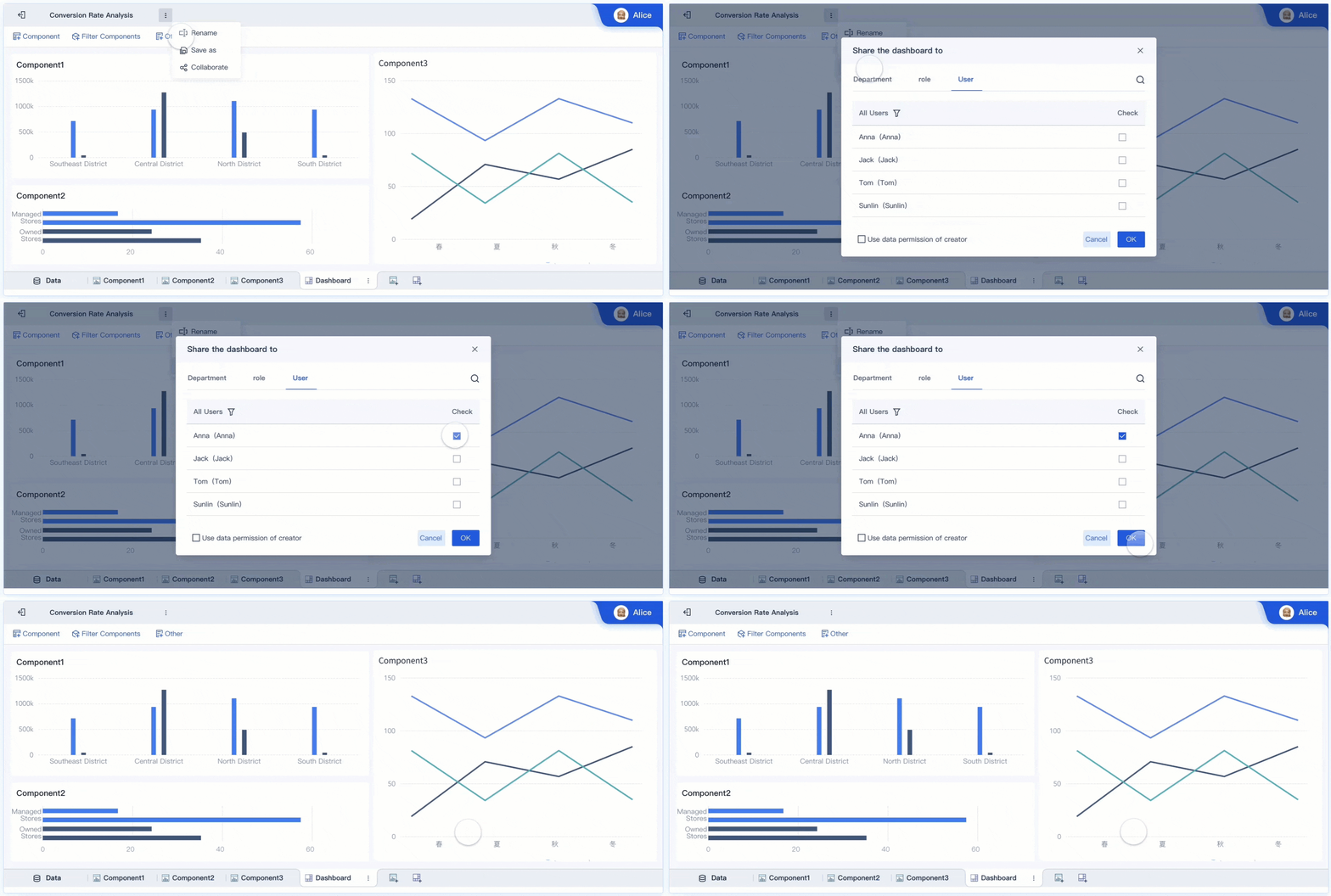
Share your dashboard or chart with your team directly from FineBI.
With these options, you can include your box plot in presentations, send it to colleagues, or keep a copy for your records. FineBI'spublishing and collaboration features help you work with others and keep everyone on the same page.
When you use a box plot generator made easy for free online, you want your results to look sharp and accurate. Here are some tips to help you get the most out of FineBI and similar tools.
Data formatting
Getting your data in the right shape is the first step to a great box plot. FineBImakes this process simple, but you still need to follow some best practices. Take a look at these techniques:
Technique
Description
Sorting values
Sort your data logically or by quartile values. This makes patterns easier to spot.
Meaningful x-axis placement
Place your x-axis at zero or use clear category labels. This helps viewers understand the plot.
Dataset size consideration
Use larger datasets for box plots. Small datasets can give misleading results.
You should always check your data for errors before uploading. Clean, well-organized data leads to box plots that tell the right story.
Troubleshooting
Even with a box plot generator made easy for free online, you might run into a few bumps. Here’s a quick guide to common issues and how to fix them:
Issue
Description
Solution
Incorrect Data Format
Data not organized for box plot creation.
Reorganize your data into the right columns or groups.
Missing Values
Some data points are missing or blank.
Fill in or remove missing values before uploading.
Outliers
Extreme values that skew your plot.
Decide if you want to keep, remove, or transform them.
If you use FineBI, you can also run into technical issues like installation problems or startup errors. Make sure you follow the setup instructions and check for port conflicts or file errors if the software does not start.
Privacy and security
When you use a box plot generator made easy for free online, you want your data to stay safe. FineBI takes privacy and security seriously. You get enterprise-grade governance, role-based access control, and data masking for sensitive information. Only authorized users can see or share your box plots. FineBI also keeps audit logs, so you always know who accessed your data. If you work with confidential or regulated data, these features help you stay compliant and secure.
Tip: Always review your sharing settings before publishing or exporting your box plots. This keeps your data in the right hands.
You can see how a Box plot generator made easy for free online lets you create clear visuals in just a few clicks. FineBIstands out for its speed and simplicity, much like other beginner-friendly tools. You get results almost instantly. When you try these tools, you can visualize data distribution, spot outliers, and compare datasets with ease. The user-friendly design encourages you to experiment and build your data analysis skills. Come back to this guide whenever you need to create your next box plot.
Access a wealth of case studies, industry insights, and solution guides to accelerate digital transformation.
FAQ
How do you choose which data to use for a box plot?
You should select numerical data that you want to compare or summarize. Make sure your data set is clean and organized. Use categories if you want to compare groups.
Can you create box plots without coding skills?
Yes, you can. FineBI gives you a drag-and-drop interface. You do not need to write any code. You just select your data and choose the box plot chart.
What should you do if your box plot shows outliers?
You should review the outliers. Sometimes they show errors or special cases. Decide if you need to remove them or investigate further. Outliers can give you important insights.
Can you share your box plot dashboards with others?
Yes, you can. FineBI lets you save and share dashboards. You can send a link or invite team members to view and interact with your box plots.



 Online Box Plot Generator